Getting Started with Prelude CC
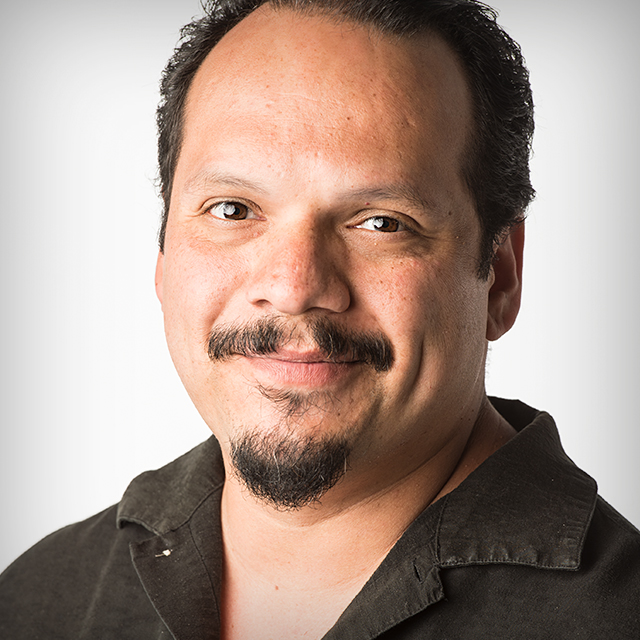
Designers and Photographers can also benefit with Prelude by starting their video vision with the rough cut, and export the project to Premiere for Editors to continue. In this class RC Concepcion takes you through the process from start to finish.
Release Date: 2014-02-27
Lessons
Introduction
<p>Intro video.</p>
Duration: 0 mins 46 seconds
Creating a New Project
<p>RC talks about opening a new project and the areas of the Prelude interface.</p>
Duration: 2 mins 59 seconds
Ingesting Footage
<p>The first step in organizing your project is to load the video clips you want to use.</p>
Duration: 7 mins 20 seconds
Transfering Clips
<p>RC talks about options for transferring footage including; choosing a destination folder, trans-coding, stitching clips together, and applying metadata.</p>
Duration: 6 mins 16 seconds
Comments
<p>Comments allow users to add information and instructions for video editing to the video clips themselves.</p>
Duration: 3 mins 20 seconds
Subclips
<p>RC talks about creating subclips of longer pieces of footage.</p>
Duration: 5 mins 13 seconds
Other Types of Markers
<p>There are a variety of marker types that can be helpful in organizing your project.</p>
Duration: 3 mins 55 seconds
Rough Cut
<p>Prelude allows users to create a rough cut of how they want the final project to look.</p>
Duration: 7 mins 25 seconds
Opening the Project in Premiere Pro
<p>Prelude makes it easy to move the project to Premiere for final editing.</p>
Duration: 1 mins 26 seconds
Export the Project
<p>Exporting the project saves the entire project and its assets to a folder that can be passed along to Premiere Pro.</p>
Duration: 2 mins 3 seconds