Beauty Retouching Workflow: The Calvin Hollywood Way
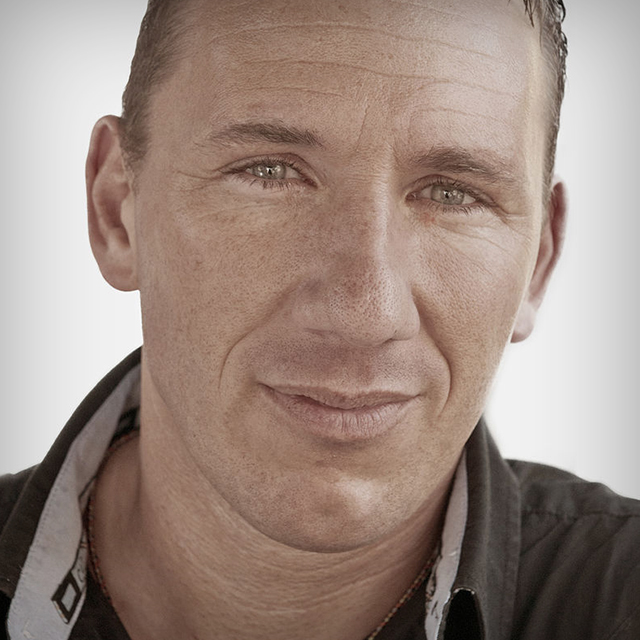
Known internationally for his edgy style and approach to fashion photography, digital artist Calvin Hollywood takes you through his personal retouching workflow to show you how he achieves his signature look so you can take what you like, or what works for you, from his style and make it your own.
Release Date: 2011-10-20
Lessons
Introduction
<p>Calvin introduces himself and talks about what he will be covering in the course.</p>
Duration: 2 mins 1 seconds
Raw Conversion
<p>Three main steps: white balance or temperature, change the exposure, and sharpen.</p>
Duration: 5 mins 18 seconds
Flip the Lip
<p>Before retouching the skin, Calvin changes the lips via flip horizontal to create symmetry. Works for the eyes and nose.</p>
Duration: 3 mins 33 seconds
Retouching Skin
<p>Calvin uses the healing brush to touch up the skin on a blank layer.</p>
Duration: 5 mins 58 seconds
Difficult Spots
<p>Using the clone stamp tool, Calvin removes flyaway hair in front of the eyes and duplicates some eyelashes to fill in some spots.</p>
Duration: 5 mins 28 seconds
Softening Skin
<p>Even the skin tone with the high pass filter and Gaussian blur to soften skin and keep the texture. This can be created as an action to duplicate this process over and over.</p>
Duration: 5 mins 51 seconds
Dodge and Burn: Exercise
<p>Calvin shows you his favorite retouching tools, Dodge and Burn, and gives you a practice exercise to help your technique.</p>
Duration: 3 mins 40 seconds
Dodge and Burn: Retouch
<p>Create light and shadow to give the face depth and change shape without using liquify.</p>
Duration: 9 mins 35 seconds
Organizing Layers
<p>Create layer groups to keep your workflow organized and easy to access.</p>
Duration: 4 mins 7 seconds
Brighten the Eyes
<p>Use the mask mode to brighten the iris of the eye with an adjustment layer and selective color.</p>
Duration: 6 mins 0 seconds
Create the Mood
<p>Calvin changes the mood and feel of his picture with the simplest aspect of his workflow that affects 99% of all his work – vignettes.</p>
Duration: 3 mins 52 seconds
Add a Color Cast
<p>By using a selective color adjustment layer, Calvin adds a color cast to change the "mood" of his photo – a step that is a signature of his work.</p>
Duration: 5 mins 17 seconds
Color Cast with Fill Layers
<p>Another method Calvin uses when adding his signature color cast.</p>
Duration: 4 mins 22 seconds
Add Texture
<p>Calvin enhances a picture by adding a texture overlay. Calvin has amassed a vast library of textures for this purpose and uses them creatively to add excitement to any photo.</p>
Duration: 4 mins 15 seconds
Liquify (Optional)
<p>Liquify is something that Calvin only uses 50% of the time because of the drastic changes it makes. He also uses it at the end of his workflow to give the client the option of having it in the final picture or not.</p>
Duration: 6 mins 48 seconds
20/80
<p>Now that 80% of his work is done, Calvin finishes up the final 20% in the only way he can – by experimenting, playing around, and getting artistic. While this portion of the lesson really can't be taught, Calvin lets you "peek over his shoulder" to give you an idea of what he does in order to help you develop your own style. Another important aspect of this step? Sleep on it.</p>
Duration: 4 mins 36 seconds
Final Review
<p>Calvin takes you back through each layer and step in his workflow. Have fun experimenting with "Calvinizing" your own workflow and thanks for watching.</p>
Duration: 3 mins 25 seconds