Mastering Camera Raw in Photoshop CS4
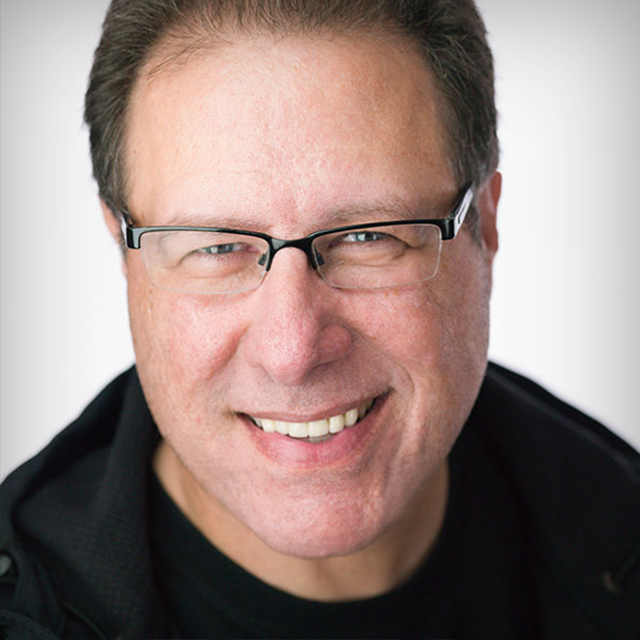
Scott Kelby covers the features and tools in Camera Raw CS4 and he also demonstrates specific workflows to help his viewers practice and retain the information from the course
Release Date: 2009-02-11
Lessons
Introduction
<p>Scott welcomes his viewers and goes over what he will cover in the course lessons</p>
Duration: 1 mins 37 seconds
Opening Different File Formats
<p>How to open JPEG, TIFF, and Raw images in Camera Raw, both from the Bridge or from within Photoshop CS4 itself</p>
Duration: 4 mins 57 seconds
Camera Profiles
<p>How to use Camera Raw's built-in Camera Profiles to give you closer to the JPEG-look your camera produces, to give you a better starting place for your Raw corrections</p>
Duration: 7 mins 58 seconds
White Balance, Part 1
<p>Setting the white balance correctly is the key to getting spot-on color, and in this segment we look at three methods, and how working with JPEGs and TIFFs differs</p>
Duration: 7 mins 50 seconds
White Balance, Part 2
<p>Here you'll learn how to use a gray card to accurately set white balance, plus we jump over to Photoshop for a quick color correction bonus tip</p>
Duration: 7 mins 52 seconds
Exposure Essentials
<p>Here we cover the Exposure control, how and when to use Recovery, when and why to use the Blacks slider and what the Brightness slider does for your image</p>
Duration: 8 mins 8 seconds
Camera Raw Workflow #1
<p>Now we're going to take what we learned in the first few segments and put them all altogether so you can see how they all work perfectly together to give you the final image you're looking for</p>
Duration: 7 mins 22 seconds
Fill Light
<p>How to use the Fill control to get you out of sticky situations</p>
Duration: 3 mins 54 seconds
Clarity, Saturation and Vibrance
<p>Here you'll not only learn when to use Clarity, why, and what it does, but Scott shares the Clarity settings he uses in his daily work. Also, why you'll want to use Vibrance instead of Saturation</p>
Duration: 7 mins 10 seconds
Adding Contrast
<p>How to use the Tone Curve panel to add and control the contrast of your image</p>
Duration: 4 mins 51 seconds
Camera Raw Workflow #2
<p>Now that you've added Clarity, Vibrance, and Contrast to your Camera Raw arsenal, it's time to apply those to our overall workflow</p>
Duration: 4 mins 54 seconds
Sharpening
<p>Here you'll learn how to apply what's known as Capture Sharpening and some great settings for creating your own landscape and portrait sharpening presets</p>
Duration: 11 mins 2 seconds
Softening in Camera Raw
<p>You already learned how to sharpen, but here's how to use Negative Clarity as a skin-softening technique</p>
Duration: 2 mins 42 seconds
The Adjustment Brush
<p>How to Dodge and Burn specific areas of your image, along with painting in effects like Tint, Sharpening, and more using this amazingly powerful new tool</p>
Duration: 10 mins 7 seconds
The Gradient Filter
<p>How to replicate the look of a Neutral Density Gradient Filter right from within Camera Raw</p>
Duration: 5 mins 43 seconds
The Spot Removal Brush
<p>Here you'll learn how to remove spots, blemishes, smudges, etc. and how to automate the process. Also, how to copy and paste Camera Raw settings between images in the Bridge</p>
Duration: 10 mins 6 seconds
Camera Raw to Pano
<p>This is a bonus segment that finishes off the work we did with the Spot Removal Brush by stitching a Camera Raw processed vertical pano</p>
Duration: 8 mins 36 seconds
Camera Raw Workflow #3
<p>We take all the local adjustment tools you just learned about, and use them in a start-to-finish portrait retouch-all done right within Camera Raw itself!</p>
Duration: 12 mins 25 seconds
Cropping
<p>Just a short, sweet video on how to use Camera Raw's cropping features</p>
Duration: 3 mins 21 seconds
Straightening Images
<p>Even shorter and sweeter than cropping, here's how to straighten an image from inside Camera Raw</p>
Duration: 0 mins 52 seconds
Color Adjustments Using The Targeted Adjustment Tool
<p>Here's how to use the HSL panel to change the color, brightness, and color saturation of certain areas within your image using the TAT</p>
Duration: 4 mins 24 seconds
Removing (or adding) Lens Vignetting
<p>Here's a Lens Correction that fixes the darkening in the edges of your photo, and how to intentionally add this popular look</p>
Duration: 6 mins 9 seconds
Double Processing
<p>Using Camera Raw and Photoshop CS4's Smart Objects to double-process a photo to create an image with a range that your camera couldn't capture</p>
Duration: 9 mins 22 seconds
Saving Your Raw Files and More Workflow
<p>There are some critical things you need to know when saving your Raw files, including one Gotcha! in the Camera Raw dialog. We also take on another workflow project</p>
Duration: 10 mins 9 seconds
High Contrast Portrait Effect
<p>Here's how to use Camera Raw to create one of the most popular gritty high-contrast looks for portraits</p>
Duration: 11 mins 11 seconds
Expanded Touch Up
<p>In this lesson we will be revisiting an image from earlier in the course but now we will be using the new tools we have just learned about</p>
Duration: 7 mins 18 seconds
Camera Raw Workflow #4
<p>Another start to finish project using any of the tools available to us in Camera Raw</p>
Duration: 7 mins 46 seconds
Conclusion
<p>Thanks for watching. Hope you learned a lot</p>
Duration: 0 mins 40 seconds